> For the complete documentation index, see [llms.txt](https://docs.gremsy.com/llms.txt). Markdown versions of documentation pages are available by appending `.md` to page URLs; this page is available as [Markdown](https://docs.gremsy.com/gimbals-for-m300-m350/general/direct-geotag.md).
# DIRECT GEOTAG
{% hint style="danger" %}
**Warning – Direct Geotag Function**
* Compatible only with **Sony LR1 cameras** running firmware **v2.0.0 or higher**.
* Requires gimbal **SoM version 3.2.0 or higher**.
* Enable/disable Direct Geotag **only when the drone is on the ground**, and the gimbal motors have been **properly tuned** (no vibration, no motor overload).
* Direct Geotag **cannot be set during flight**.
* Do **not** power off the drone or reboot the SoM during Geotagging, as this may **corrupt the images** on the Sony memory card.
* It is recommended to switch to **HDMI output** for easier monitoring of the feature.
{% endhint %}
## Introduction
The Geotag feature is a new function that embeds the required GPS data directly into the images stored on the **Sony LR1** camera’s memory card.\
This helps eliminate one step in the post-processing workflow after a mapping flight.\
The feature also provides progress display and results status during the Geotagging process.
## Steps to Perform
{% stepper %}
{% step %}
Power on M300 / M350
{% endstep %}
{% step %}
In the configuration interface, turn on the **Direct Geotag** switch.
{% endstep %}
{% step %}
Start Mapping Mission
{% endstep %}
{% step %}
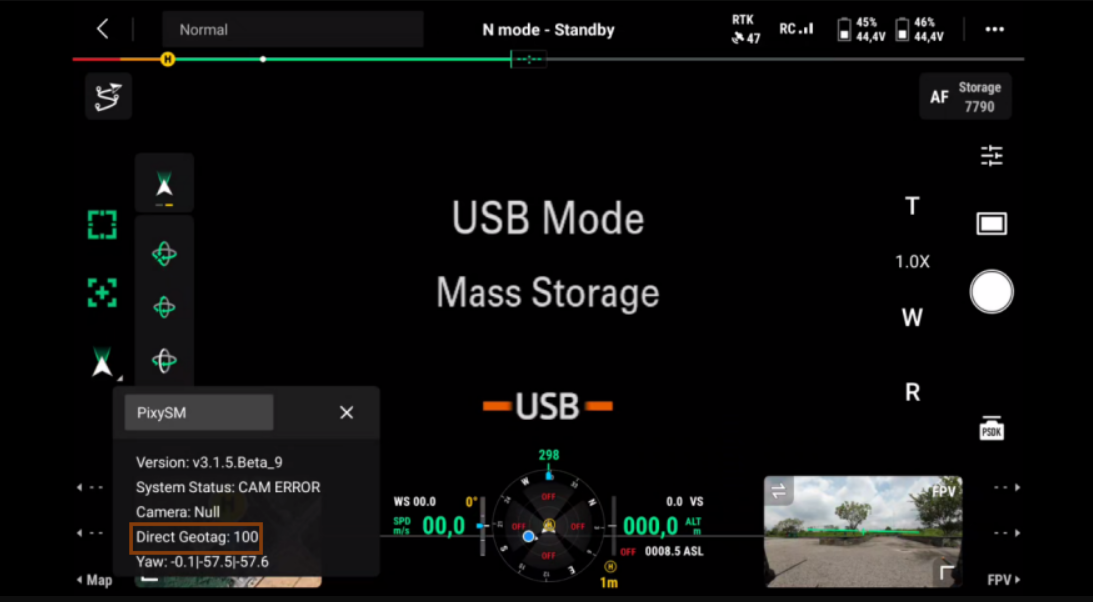
After landing, the camera will switch to **Mass Storage** mode to begin the geotagging process.
{% endstep %}
{% step %}
Once all conditions are verified, the gimbal will start geotagging.
In the **Realtime** field, the line *Images/Logs* will change to *Direct Geotag*, showing the percentage progress of geotagging.
{% endstep %}
{% step %}
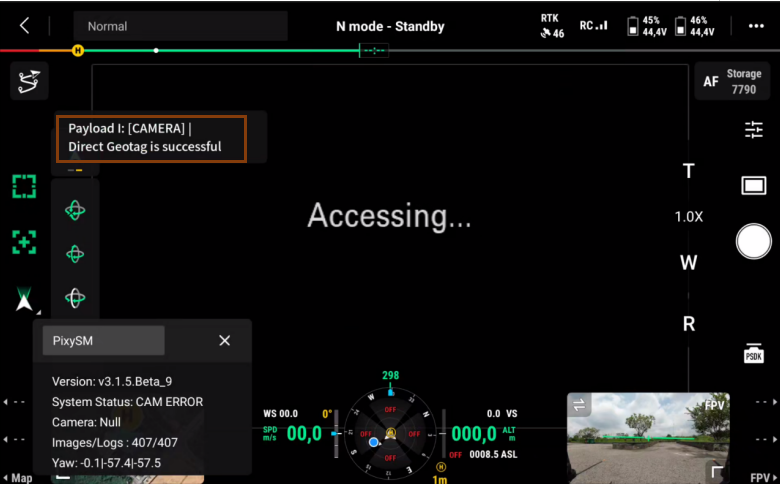
When Direct Geotag reaches **100%**, a message will appear in HMS:
* **“Direct Geotag is successful”** if completed.
* **“Direct Geotag is failed”** if not completed.
{% endstep %}
{% step %}
After finishing, the camera will return to the **PC Remote** state as before
{% endstep %}
{% endstepper %}
*Image 1: In the configuration interface, turn on the **Direct Geotag** switch.*
*Image 2: Carry out the mapping mission as usual.*
*Image 3: After landing, the camera will switch to **Mass Storage mode** to begin the geotagging process.*
*Image 4: Direct Geotag is successful*
---
# Agent Instructions
This documentation is published with GitBook. GitBook is the documentation platform designed so that both humans and AI agents can read, navigate, and reason over technical content effectively. Learn more at gitbook.com.
## Querying This Documentation
If you need additional information that is not directly available in this page, you can query the documentation by asking a question.
Perform an HTTP GET request on the following URL with the `ask` and `goal` query parameters:
```
GET https://docs.gremsy.com/gimbals-for-m300-m350/general/direct-geotag.md?ask=&goal=
```
`ask` is the immediate question: it should be specific, self-contained, and written in natural language.
`goal` is what the user is ultimately trying to achieve, the reason they need the answer. Sharing it helps GitBook give you a better, more relevant answer. A goal is most helpful when it describes the outcome the user wants rather than restating the question. For example, with `ask=how do I create an API token`, a goal like `automate deployments from our CI pipeline` lets GitBook tailor the answer to that use case.
The response will contain a direct answer to the question and relevant excerpts and sources from the documentation.
Use this mechanism when the answer is not explicitly present in the current page, you need clarification or additional context, or you want to retrieve related documentation sections.